
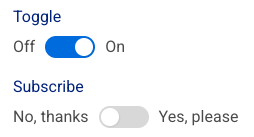
To add a toggle switch field to an Elementor form, you can use the "Toggle Switch" field type in the Elementor Pro form builder. This allows users to switch between two states (e.g., on/off, yes/no) with a simple visual toggle. You can customize the labels for each state and customize the styling of the toggle.
Adding the Toggle Field#
- Open the page in Elementor where you want to add the form.
- Drag and drop the "Form" widget onto the page.
- In the Elementor editor, navigate to the "Content" tab of the form.
- Click on "Add Item" to add a new form field.
- From the "Field Type" dropdown, select "Toggle".
Customizing the Toggle Switch Field#
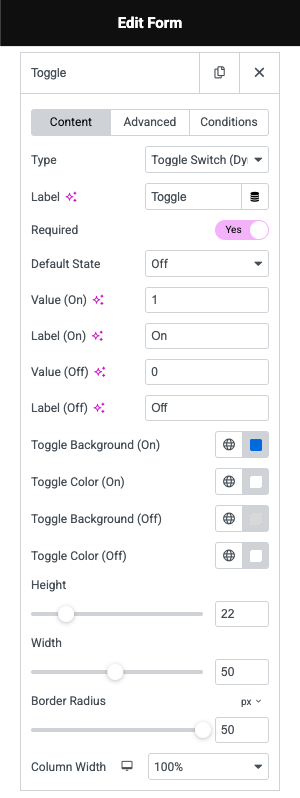
- Label (On): Enter the text to display when the toggle is in the on (selected) state.
- Label (Off): Enter the text to display when the toggle is in the off (unselected) state.
- Value (On): Enter the value to be submitted when the toggle is in the on (selected) state.
- Value (Off): Enter the value to be submitted when the toggle is in the off (unselected) state.
- Label: Enter the label for the toggle field (e.g., "Subscribe").
- Default State: Choose whether the toggle should be on or off by default.
- Required: Enable this option if the toggle field is required for form submission.
- Key: A unique identifier for the field, used for form submission data.
Customizing the Toggle's Appearance#
- Toggle Background (On): Background color to apply when the toggle is in the on (selected) state.
- Toggle Background (Off): Background color to apply when the toggle is in the off (unselected) state.
- Toggle Color (On): Color to apply on the handle when the toggle is in the on (selected) state.
- Toggle Color (Off): Color to apply on the handle when the toggle is in the off (unselected) state.
- Height: Set the height of the toggle
- Width: Set the width of the toggle
- Border Radius: Set the radius of the toggle
Using the Toggle Field's Value#
- The toggle field's value (either the "Value (On)" or "Value (Off)") will be included in the form submission data.
- You can access this data in your form submission handling process (e.g., in your email notifications, CRM integrations, etc.).
Example#
Let's say you're creating a form for newsletter signup. You could add a toggle field with:
- Field Type: Toggle Switch
- Value (Off): "No, thanks"
- Value (On): "Yes, subscribe"
- Label: "Subscribe to our newsletter?"
When the user submits the form, the submission data will include either "No, thanks" or "Yes, subscribe" depending on the toggle's state.