
The Dynamic Posts widget enables you to display a list or grid of posts dynamically, with a wide range of layout styles and customization options. This makes it ideal for showcasing blog posts, custom post types, portfolios, events, and more.
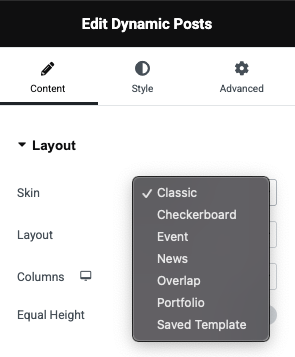
Layout#
- Skin: Choose from a variety of pre-built visual layouts to control the appearance of post listings:
- Classic – A traditional blog-style layout with image, title, and excerpt.
- Checkerboard – Alternating left-right layout for visual interest.
- Event – Tailored for event listings with date/time prominence.
- News – Designed for news or magazine-style listings.
- Overlap – Creative overlapping of post elements for a modern look.
- Portfolio – Ideal for showcasing work/projects in a gallery-like format.
- Saved Template – Use a previously saved Elementor template for full custom control over post item rendering.
- Layout: Refers to the structure/format in which posts will be displayed. Options typically include:
- Grid
- List
- Carousel
- Columns: Set the number of columns in the layout (especially for grid-type skins).
- Equal Height: Toggle to ensure that all post items in a row maintain the same height, improving alignment and aesthetics—especially useful in multi-column layouts.
Query#
Allows you to fully customize which posts are displayed. It provides advanced filtering, sorting, and dynamic selection logic that gives you granular control over how post data is retrieved and displayed.
- Query Type
- Main Query – Uses the default WordPress loop (useful on archive or blog pages).
- Custom Query – Enables you to manually control what posts are shown.
- Post Type: Select the post type to query, e.g., Posts, Pages, or any Custom Post Type registered on the site.
- Categories Filter
- Categories Filter Type – Choose to Include or Exclude specific categories.
- Categories – Enter category slugs or IDs to define the selection.
- Authors Filter
- Authors Filter Type – Include or exclude posts from specific authors.
- Authors – Enter author usernames or IDs to apply the filter.
- Post Filter
- Posts Filter Type – Include or exclude specific posts by ID.
- Posts – Define which post(s) to target or omit.
- Date Filter: Filter posts by time frame:
- All
- Past Day
- Past Week
- Past Month
- Past Quarter
- Past Year
- Order & Sorting
- Order – Choose Ascending or Descending.
- Order By – Sort results by Date, Title, Menu Order, Random, etc.
- Sticky Posts: Toggle to include sticky posts alongside others.
- Posts Per Page: Controls the number of posts/pages that appear per page.
- Offset: Skip a specified number of initial posts. Useful for pagination or showing alternate post batches.
- Exclude Current Post: Remove the current post (e.g., on single post pages) from the results.
- Avoid Duplicates: Prevents duplicate posts from appearing in multiple listings on the same page (frontend only).
- Meta Query: Add custom logic based on post meta values:
- Meta Key – Enter the custom field name.
- Meta Value – Enter the expected value.
- Compare – Set the comparison logic (Equal, Not Equal, Greater Than, etc.).
- Type – Choose how the data is treated (Numeric, Character, Date, etc.).
- You can add multiple meta conditions and define a Meta Query Relation (AND / OR).
- Query ID: Assign a unique identifier for this query. This is helpful for AJAX filtering or when referencing this query in dynamic widgets elsewhere.
- If Nothing Found
- Nothing Found Message – A textarea where you can enter a custom fallback message that will display if no posts match the criteria. (Example: "Sorry, no posts matched your criteria.")
Filters#
Allows you to display interactive taxonomy-based filters on the frontend so visitors can easily filter posts by category, tag, or any other taxonomy.
- Show Filters: Toggle this on to enable taxonomy filters above the post grid, allowing users to filter the displayed content.
- Filter By: Select one or more taxonomies (like Categories or Tags) to use as filter criteria. Each taxonomy will generate a corresponding filter option in the frontend UI.
- Order By: Choose how the filters should be sorted:
- Name – Alphabetical order
- Slug – By taxonomy slug
- Count – Based on number of associated posts
- Term Order – Custom ordering set in WordPress
- Order: Specify the sort direction:
- Ascending – A to Z
- Descending – Z to A
- "All" Filter Label: Set a custom label for the "All" filter button (e.g., "All Projects", "Everything").
- Default Active Filter: Enable this option to make the first filter active by default on page load.
- Show Post Count: Displays the number of posts available under each filter item (e.g., "News (4)").
- Dropdown Filters: Choose how filters behave on different devices:
- No – Show filters inline on all devices
- For All Devices – Use a dropdown layout instead of horizontal filters
- For Tablet & Mobile – Use dropdown only on smaller screens
- For Mobile Only – Switch to dropdown only on mobile
- Alignment: Control the horizontal alignment of the filters.
Fields#
Allows you to define which post elements or metadata should be displayed inside each post item. These fields help build custom post cards using data like titles, images, custom fields, and more.
- Content: You can choose from a variety of dynamic content sources to display inside each post item:
- Post Title – Displays the post's title.
- Post Author – Shows the name of the post author.
- Post Date – Displays the post's published date.
- Post Excerpt – Shows a trimmed version of the post content.
- Post Content – Displays the full content of the post.
- Post Comments Count – Shows how many comments the post has.
- Post Terms – Displays terms (e.g., categories, tags) related to the post.
- Post Featured Image – Renders the post's featured image.
- Post Custom Field – Displays the value of a custom meta field.
- ACF Field – Pulls in data from an ACF (Advanced Custom Fields) field.
- Pods Field – Displays data from a Pods framework field.
- Button – Adds a custom button element (e.g., Read More, View Project).
- Image-Specific Options:
- Image Resolution – Choose from predefined WordPress image sizes like
thumbnail,medium,large,full, or any custom-registered sizes. - Custom Height – Optionally set a fixed height for the image (useful for uniform layout).
- Fallback Image – Define a default image to display when a post doesn’t have a featured image.
- Image Resolution – Choose from predefined WordPress image sizes like
- Link To: Choose where the image or element links:
- None
- Post URL – Links to the post's single page.
- Custom Field URL – Use a dynamic URL from a custom field.
- Open in New Window: Open the link in a new browser tab.
- Add nofollow: Adds a
rel="nofollow"attribute to the link, useful for SEO control.
Pagination#
Choose how the posts should be paginated:
- Pagination Type:
- None – Disables pagination and displays a given number of posts (see Posts Per Page) in a single batch.
- Numbers – Shows numbered pagination (e.g., 1, 2, 3…).
- Numbers + Previous/Next – Combines number-based pagination with navigation arrows or links for previous/next.
- Load More Button – Adds a "Load More" button that loads the next set of posts without a page refresh (AJAX-based).
- Infinite – Automatically loads more posts as the user scrolls (infinite scroll behavior).
- Pagination Position: Choose where the pagination controls appear:
- Top – Displays pagination at the top of the post grid.
- Bottom – Displays it at the bottom.
- Top + Bottom – Displays pagination both above and below the posts.
- Page Limit: Set the maximum number of pages to be fetched.
- Shorten: Enable this option to condense the pagination numbers, typically showing the first, last, and a few around the current page — like:
1 … 4 5 6 … 10. - Alignment: Set how the pagination is aligned.